
Scenario One — Office Administration
Listen to this lesson
Nigerian voice narration
Fictional training case. You are employed as the Administrative Assistant at Gidan Technology Services, a fictional Nigerian company with 38 staff in Jos and Abuja. The Operations Manager gives you a first-week brief: manage staff attendance, keep an accurate contact database, schedule the monthly meeting, prepare two official letters, produce a monthly attendance report and use AI to speed up the paperwork. Nothing exists in digital form yet. This scenario walks you through building the system from scratch.

Introduction and learning objectives
This scenario applies Excel, Word, ChatGPT and Gemini to office administration. You will build a staff attendance register and contact database, create a meeting schedule, prepare professional letters and memos, generate a monthly attendance report and use AI responsibly for administrative drafts. By the end you should have a small, working admin system and a clear record of what you verified.
Build the staff attendance register
Create a workbook named 2026_Admin_System.xlsx with sheets: Attendance, Contacts, Meetings, Report and Lists. On Lists, enter the departments (Admin, Sales, Technical, Finance) and attendance statuses (Present, Late, Absent, Leave, Official duty). On Attendance, use columns Date, Staff ID, Full Name, Department, Expected time, Time in, Time out, Status, Remarks. Convert the range to a table, add validation lists and freeze the header row. Use fictional staff records from the practice file for this scenario.
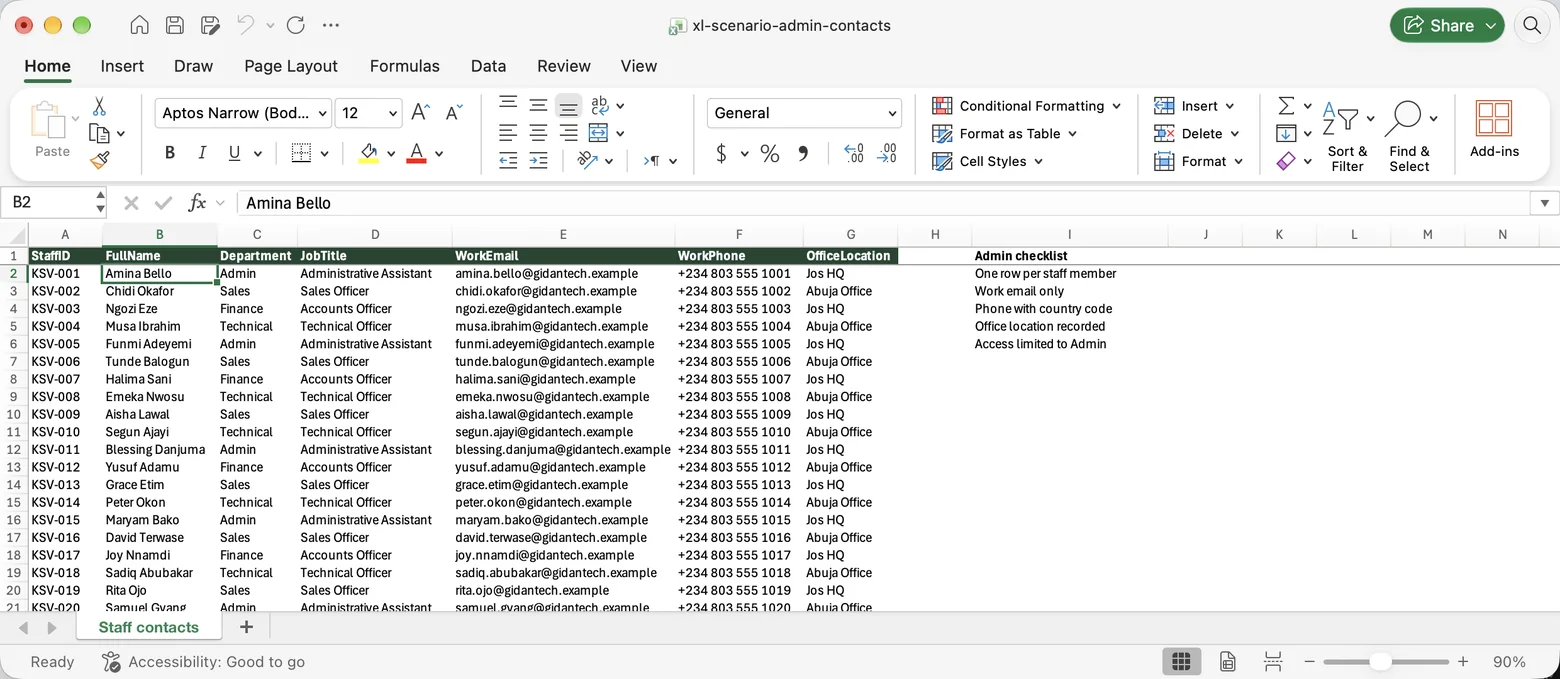
Try it yourself — step by step
- Open xl_staff_contacts.csv.
- Keep one row per staff member and freeze the header row.
- Use work email addresses only and record the office location.
- Limit edit access to the Admin team.
Build the staff contact database
On Contacts, use Staff ID, Full Name, Department, Job title, Work email, Work phone, Office location and Emergency contact. Use a consistent phone format and a validation list for department. Do not store home addresses, BVNs or personal bank details in a shared admin file. Protect the email and phone columns from accidental edits if the file is shared widely. Add a note at the top: 'Internal use only — contains staff personal data.' Share only with the Operations Manager and HR.
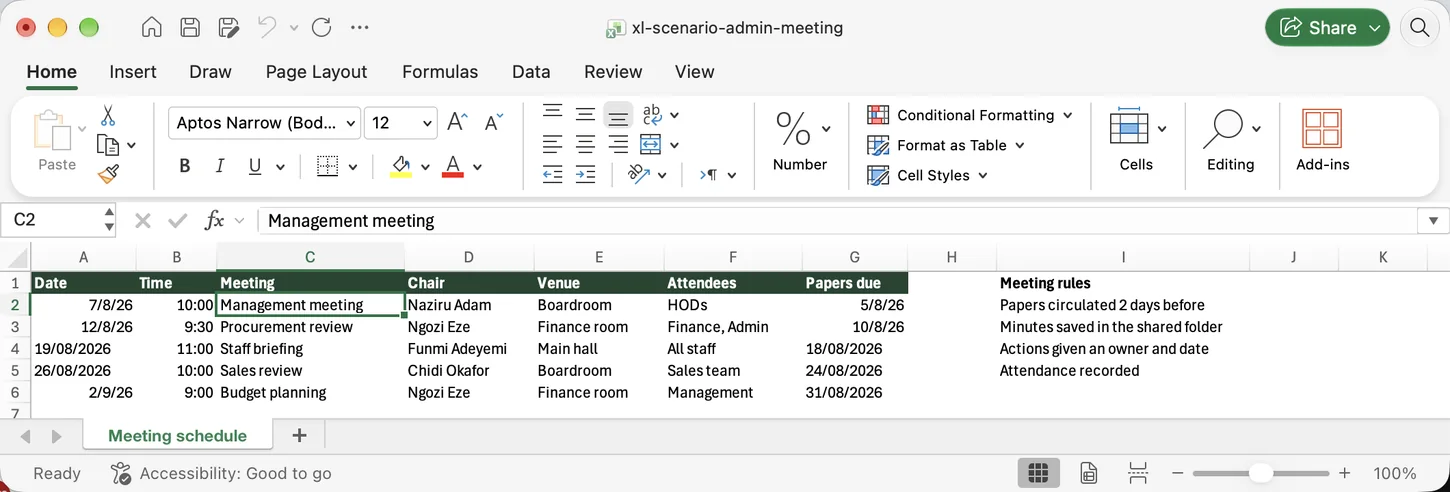
Try it yourself — step by step
- Create columns for Date, Time, Meeting, Chair, Venue, Attendees and Papers due.
- Enter each meeting and give it a chair and a venue.
- Set Papers due two days before the meeting date.
- Save the minutes in the shared folder after each meeting.
Create the meeting schedule
On Meetings, list Date, Time, Meeting, Chair, Venue, Attendees, Agenda sent, Minutes due and Status. Use data validation for Status: Planned, Confirmed, Held, Cancelled. Add a formula to flag meetings within the next seven days: =IF(AND(A2>=TODAY(),A2<=TODAY()+7),"This week","Later"). Sort by date. Use the schedule to send reminders and to check that minutes are produced on time. A meeting without an agenda or an owner tends to waste everyone's time.
Prepare professional letters and memos
Use Word for two documents: a letter to a supplier confirming a delivery date and a memo to all staff about the new attendance process. Set A4 margins, a consistent font, a header with the company name and a footer with page numbers. Use the formal letter layout from the Word module. The memo should have To, From, Date, Subject and three short paragraphs: what is changing, why and what staff must do. Save both as .docx and export final PDFs.
Generate the monthly attendance report
On Report, use a small summary table: Department, Staff count, Days present, Days late, Days absent, Attendance rate. Calculate with COUNTIFS against the Attendance table. For example, present days for Admin =COUNTIFS(Attendance[Department],"Admin",Attendance[Status],"Present"). Rate = present ÷ expected days, formatted as a percentage. Add one line of commentary: the department with the lowest rate and one possible cause phrased as 'to be confirmed'. Reconcile the total rows with the register row count.

Build the prompt from three phrases — Role, Task and Format — and watch the AI answer.
Use AI for administrative drafts
Use ChatGPT or Gemini free chat for a first draft of the memo and the supplier letter. Give a Role–Task–Format prompt, use fictional names, and include the facts: dates, order number and required action. Never paste real staff attendance or contact records into a public tool. After the draft, check every name, date and figure against your records, rewrite in the company's tone and remove anything you cannot support. Record that AI assisted the draft if your policy requires it.
Step-by-step: assemble the admin system
1) Create the workbook and the five sheets. 2) Build the Lists sheet first. 3) Build Attendance with headers, a table, validation and formulas. 4) Build Contacts with only work-related fields. 5) Build Meetings with dates, owners and status. 6) Build the Report summary with COUNTIFS. 7) Create the Word letter and memo from the templates. 8) Export both to PDF. 9) Share the workbook with the manager as Can edit and with staff as Can view only if appropriate. 10) Test with the fictional data and correct any error before real use.
Review and handover
Before handing over, check that every total reconciles, every formula is protected, and no confidential field is in a shared view. Write a one-page handover note: what each sheet does, how to add a new staff member, how to record attendance and how to produce the monthly report. Keep a blank master template. Schedule a monthly review to fix naming errors and archive old data. A system that only you understand is a risk to the office, not an asset.
Common mistakes to avoid
Common mistakes include storing personal addresses and bank details in a widely shared contact list, using free text for departments so reports break, and sending a memo with invented dates or names. Others are producing an attendance report without reconciling the row count and sharing an editable workbook with all staff. Keep personal data minimal, use validation lists, verify every figure and separate view-only from edit access.
Practice exercise
Using the downloadable attendance and contact files, build the five-sheet admin system with fictional data. Add validation lists, COUNTIFS summary formulas, a seven-day meeting flag and two Word documents. Export the letter and memo to PDF. Write a reconciliation note showing that the report total matches the register and list three fields you deliberately left out for privacy.
Lesson summary
An admin system needs one workbook with clear sheets for attendance, contacts, meetings and reporting, plus Word templates for letters and memos. Use validation lists, formulas and control totals. Keep personal data minimal and access limited. Use AI for drafts only, verify every fact and leave a handover note.
Open Microsoft Copilot (free tier) and paste this prompt there. Fits an admin officer working across Excel, Word and Microsoft 365.
You are an administrative systems adviser in a Nigerian company. Design a monthly attendance report from an attendance register as a summary table layout with the COUNTIFS formulas and one reconciliation check.
Why this tool: Fits an admin officer working across Excel, Word and Microsoft 365.
Hit a free limit? Switch to ChatGPT or Gemini and continue — the prompt works in any assistant.
Answer all three questions and check your answers to unlock the next lesson. Pass mark: 2 of 3.
A staff contact database shared with all employees should avoid…
A meeting schedule is most useful when it includes…
Before sending an AI-drafted memo, you must…