
Digital Skills in the Modern Workplace
Listen to this lesson
Nigerian voice narration
Fictional training case. You have just resumed as an Administrative Assistant at Kola & Sons Ventures, a fictional distribution company in Jos. Your supervisor sends a WhatsApp message: 'Please organise the staff list, the expense records and last week's minutes before Friday.' The files are scattered across a flash drive, two phones and an old laptop. You have used a computer before, but nobody taught you how offices actually organise digital work. This module gives you the foundation.

Introduction and learning objectives
This lesson explains what digital office productivity means, why computer skills matter in Nigerian workplaces, what Microsoft Office and cloud tools are, how files and folders work, and the habits that protect you and your employer. By the end you should be able to describe the main office tools, identify common file formats, organise a folder that others can use, and explain three rules for handling work files safely.
What digital office productivity means
Digital office productivity is the ability to use computers and online tools to finish everyday work accurately and on time: writing a memo, recording expenses, preparing a presentation, sharing a file with a colleague or finding last year's report in seconds. It is not about knowing every button. It is about choosing the right tool, keeping records organised and producing work that another person can open, understand and trust. The three foundations are a reliable device, a clear folder system and safe habits.
Why computer skills matter at work
Most Nigerian offices now run on email, spreadsheets and online forms. A 2024-style office may still keep paper files, but salary schedules, procurement records, attendance and reports are increasingly digital. Staff who can build a clean spreadsheet or format a professional letter save their units hours every week and become the person others ask for help. Basic digital skills also protect your job: an employer can train you on a new system, but cannot easily work with someone who refuses to learn one.
The Microsoft Office family at a glance
Microsoft Office is a group of work applications. Excel handles numbers, lists and calculations. Word handles letters, reports and documents. PowerPoint handles slides and presentations. Outlook handles email and calendars. OneDrive stores files online. Microsoft 365 is the subscription service that bundles these tools and cloud storage. The desktop versions have the fullest features; the web versions are free with a Microsoft account and are enough for most everyday office tasks. You do not need a paid subscription to start this course.
Cloud-based productivity tools
Cloud tools run through a browser and store files on a company's servers rather than only on your laptop. Microsoft 365 web apps and OneDrive are examples; Google Drive, Docs, Sheets and Slides are another family. The advantages are access from any device, automatic saving and easier sharing. The risks are weak passwords, sharing links too widely and working offline without a copy. Use a strong password, enable two-step verification where offered, and check who can open a link before you send it.
Files, folders and file formats
A file is one document, image or workbook. A folder groups related files. A file extension tells the computer what kind of file it is. Common office formats include .docx for Word, .xlsx for Excel, .pptx for PowerPoint, .pdf for a finished document anyone can read, .csv for plain table data, .jpg or .png for images and .zip for a compressed bundle. Choose the format your reader can open. Send a PDF when the layout must not change; send .xlsx when the person needs to edit figures.
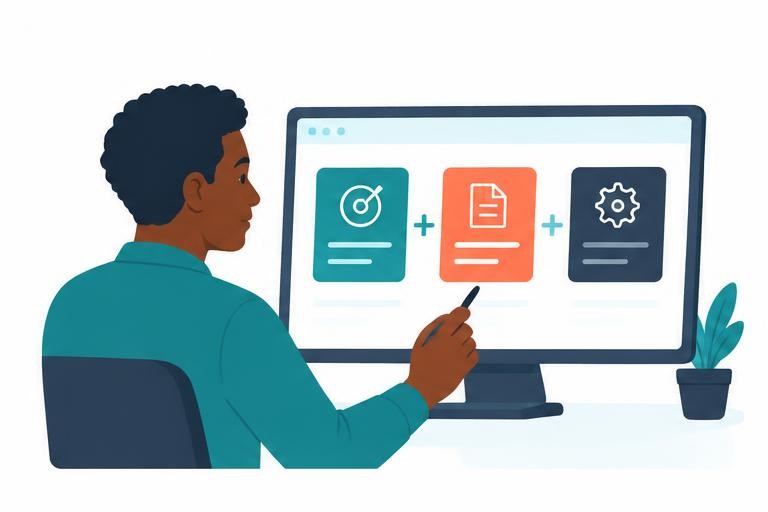
Build the prompt from three phrases — Role, Task and Format — and watch the AI answer.
Good digital workplace practices
Use clear file names such as 2026-10_October_Expense_Register_v2.xlsx instead of final-final-new.xlsx. Keep one master folder per unit, with subfolders for years, projects and records. Never store the only copy on a personal phone. Lock your screen when you leave your desk. Do not paste salary, BVN, customer or classified data into public AI tools. Back up important files to OneDrive or an approved drive, and keep confidential work out of personal WhatsApp groups. These habits prevent lost work and data breaches.
Step-by-step: organise a shared office folder
1) Create a main folder named after the unit, for example Admin_Unit_2026. 2) Inside it create subfolders: Correspondence, Meetings, Staff_Records, Finance_Returns and Templates. 3) Rename loose files using the pattern YYYY-MM-DD_Description_v1. 4) Move each file into the correct subfolder. 5) Create a short README text file explaining the folder structure. 6) Share the folder with colleagues as Viewer or Editor according to their role, never as 'anyone with the link can edit'. 7) Review the folder at the end of every month.
Workplace applications
In a ministry, the same structure works for circulars, minutes, nominal rolls and budget returns. In a small business, use folders for Customers, Suppliers, Invoices, Staff and Tax. In a school, use Admissions, Results, Staff and Parents. The names change, the principle does not: one home for each record, a predictable file name and access limited to the people who need it. When a colleague is on leave, anyone should be able to find the file without calling them.
Common mistakes to avoid
The most common mistakes are saving files to the desktop with names like 'new document', keeping the only copy on a personal phone, sharing a folder as 'anyone with the link can edit', and using personal email or WhatsApp for confidential records. Another mistake is choosing .csv when the reader needs formatting, or sending an editable .xlsx when the reader only needs to view a final report. Finally, do not assume cloud storage is automatically private: access settings decide who can see the file.
Practice exercise
Create a practice folder structure for a fictional office with at least five subfolders. Rename five loose files using the date-description-version pattern. Write a three-line README explaining the structure. Then list three files that should be shared as PDF and three that should stay editable, with a reason for each.
Lesson summary
Digital office productivity combines the right tools, organised files and safe habits. Excel, Word, PowerPoint and OneDrive cover most office work, and the free web versions are enough to begin. Use clear folder structures, predictable file names, appropriate formats and limited sharing. Protect confidential data and keep a backup.
Open ChatGPT (free tier) and paste this prompt there. Explains digital office concepts in plain language and suggests a folder structure you can adapt.
You are a patient digital skills trainer for Nigerian offices. Explain the difference between Excel web and Excel desktop, and list five office file formats as a table: tool or format, what it is used for, whether it is free.
Why this tool: Explains digital office concepts in plain language and suggests a folder structure you can adapt.
Hit a free limit? Switch to ChatGPT or Gemini and continue — the prompt works in any assistant.
Answer all three questions and check your answers to unlock the next lesson. Pass mark: 2 of 3.
OneDrive is best described as…
A colleague needs to edit a sales table. The most useful file to send is…
Which is the safest sharing setting for a staff records folder?