
Automating Everyday Office Tasks
Listen to this lesson
Nigerian voice narration
Fictional training case. Every Monday, someone at Kola & Sons Ventures retypes the same weekly sales summary, rebuilds the same attendance sheet and rewrites the same reminder email. The work is repetitive, slow and easy to get wrong. This module shows you how to identify those tasks, turn them into reusable templates, automate the calculations and use AI to improve the workflow — without buying expensive software or writing code.

Introduction and learning objectives
This lesson teaches practical automation for office work. You will identify repetitive tasks, use Excel templates, create reusable Word and PowerPoint templates, automate calculations with formulas, use AI to generate template content, improve office workflows and understand no-code automation concepts. By the end you should have a simple automation plan for one recurring task in your own office.
Identify repetitive tasks
For one week, keep a simple log of work you repeat: the weekly sales summary, the monthly attendance report, the same reminder email, the same agenda, the same report layout. For each task note the time it takes, how often it repeats, where the data comes from and what usually goes wrong. A task is a good automation candidate when it is frequent, rule-based, uses digital data and has a stable layout. A one-off sensitive decision is not.
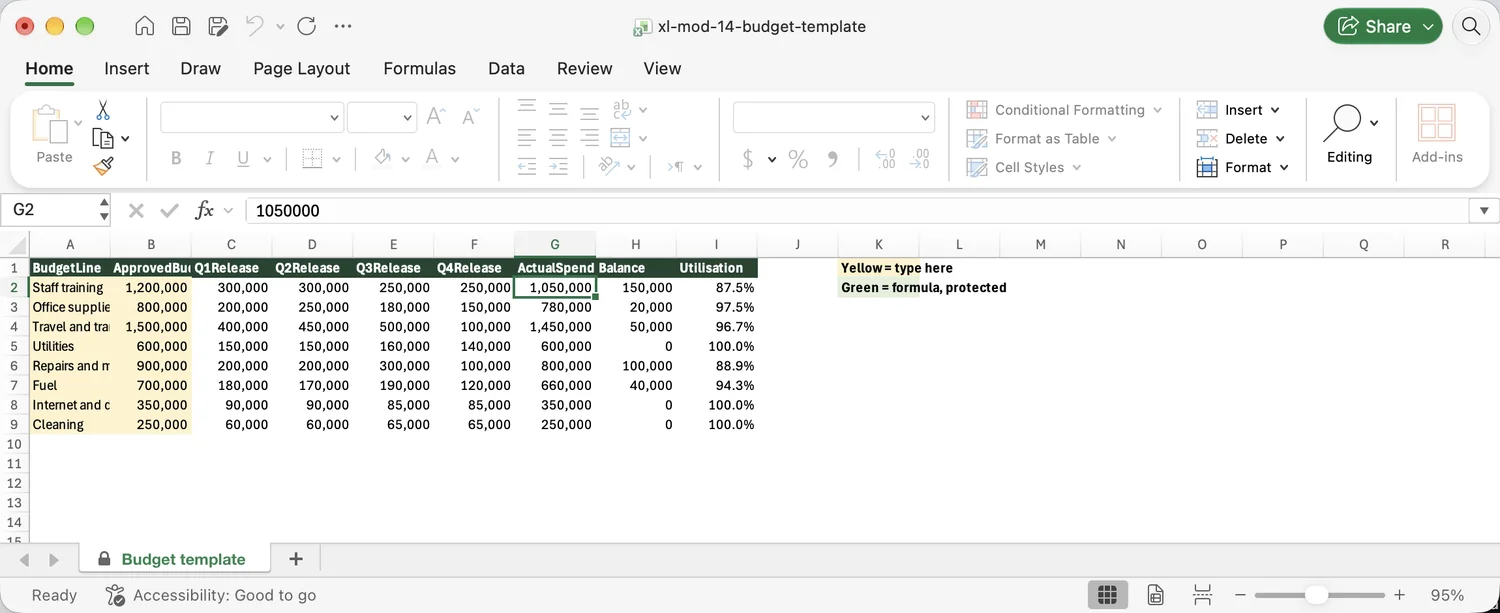
Try it yourself — step by step
- Open xl_budget_tracker.csv as the starting point.
- Shade input cells yellow and formula cells green.
- Add a legend explaining Yellow = type here and Green = formula.
- Protect the sheet with Review → Protect Sheet so formulas stay safe.
Use Excel templates
Turn a workbook you rebuild every month into a template. Keep a blank master with headers, formulas, validation lists, formatting and a Summary sheet. Save it as .xltx in desktop Excel, or keep a read-only master in OneDrive. Each month, make a copy, paste the new data and refresh the PivotTable. Protect formula cells and leave input cells unlocked. Add a version note with the month and the person who prepared it. A template saves time only if it is tested and kept clean.
Create reusable document templates
In Word, build a letter, memo, minutes and report template with styles, headers, footers and page numbers already set. Save as .dotx in desktop Word, or keep a read-only master in OneDrive. Use placeholders such as [DATE], [RECIPIENT], [REFERENCE] and [ACTION]. In PowerPoint, create a deck template with the company theme, title slide, section slide and a chart slide. A reusable template reduces formatting decisions and keeps the organisation's documents consistent.
Automate calculations with formulas
Replace manual arithmetic with formulas that update automatically. Totals, variances, percentages, flags and running balances should be formulas, not typed numbers. Use tables so new rows inherit formulas. Use SUMIFS for category summaries and IF for flags. Add a control total at the top or bottom so an error is visible. If a figure is typed rather than calculated, note why. The goal is not to remove human review; it is to make the arithmetic repeatable and auditable.
Use AI to generate template content
AI can draft the placeholder text for a new template: 'Create a one-page weekly sales report template with sections for headline, top products, branch performance and actions. Use [PLACEHOLDER] for figures and do not invent data.' It can also suggest column layouts for a register or headings for a report. Review the suggestion, simplify it and remove anything that does not fit your office. The template should serve the work, not show off the AI.

Build the prompt from three phrases — Role, Task and Format — and watch the AI answer.
Improve office workflows
Map the current flow: who receives the data, who cleans it, who calculates, who approves and who sends. Look for duplicate entry, unclear ownership and unnecessary email attachments. A simple improvement is one shared workbook with named editors, a standard template and a weekly review. Another is a checklist that must be completed before a report is sent. Write the new flow in five steps and test it for one month. Automation that nobody follows is just a document.
Introduction to no-code automation concepts
No-code tools connect apps with simple rules: when a form is submitted, add a row to a sheet and send an email. Examples include Microsoft Power Automate, Google Apps Script (slightly more technical), Zapier and Make. Free tiers are limited, so start with the tools your organisation already has. The concepts are trigger, condition and action. Before building, confirm data-protection rules and who approves the automation. This course does not require you to buy or connect any of these tools.
Step-by-step: automate one weekly task
1) Choose one recurring task from your log. 2) Write the current steps and the time taken. 3) Identify the data source and the output. 4) Build or adapt a template with headers, formulas and validation. 5) Replace typed totals with formulas and add a control total. 6) Add a short checklist for review and approval. 7) Test with last week's data and compare the result with the old method. 8) Save the template and a one-page instruction. 9) Run it for two weeks and note the time saved and any errors. 10) Decide whether a no-code tool is justified.
Common mistakes to avoid
Common mistakes include automating a messy process, hiding errors behind a template, protecting a workbook so tightly that nobody can enter data, and buying a paid automation tool before testing a free manual version. Others include using templates without version control and assuming automation removes the need for review. Start with one task, measure the time saved, keep a human approval step and document the new process.
Practice exercise
Choose one recurring office task. Write the current steps and the time it takes. Build a simple template with a header, formula columns, a validation list and a summary. Test it with last month's fictional data and compare the result with your manual method. Write a one-page instruction for a colleague. Do not connect any paid tool.
Lesson summary
Automation starts with identifying frequent, rule-based digital tasks. Turn repeated workbooks and documents into tested templates, replace typed arithmetic with formulas, and use AI only to draft template content. Improve the workflow before adding tools. Measure the time saved, keep human review and document the process.
Open Google Gemini (free tier) and paste this prompt there. Suggests repeatable macro-free automation ideas and checklist steps for office tasks.
You are an office automation adviser for a Nigerian SME. Plan a simple template-based automation for a weekly sales summary as six numbered steps with the trigger, the template and the human review point.
Why this tool: Suggests repeatable macro-free automation ideas and checklist steps for office tasks.
Hit a free limit? Switch to ChatGPT or Gemini and continue — the prompt works in any assistant.
Answer all three questions and check your answers to unlock the next lesson. Pass mark: 2 of 3.
A reusable Excel template should…
Before buying a no-code automation tool, you should…
A key control in any automated report is…