
Using AI with Excel
Listen to this lesson
Nigerian voice narration
Fictional training case. You need a formula that sums sales by branch and month, but you cannot remember how SUMIFS works. You also inherited a workbook full of #N/A errors and need a realistic practice dataset to test a report. Used carefully, a free AI assistant can explain the formula, suggest a fix and generate fictional sample data. Used carelessly, it can give a confident formula that references the wrong columns. This module teaches the careful way.

Introduction and learning objectives
This lesson shows how to use free ChatGPT, Gemini or Copilot with Excel. You will ask AI to generate formulas, explain complex formulas, troubleshoot errors, create fictional sample datasets, analyse spreadsheet results, draft reports from verified figures and improve a workflow. By the end you should be able to write a precise prompt, test the AI's formula on a copy of your data and document what you changed.
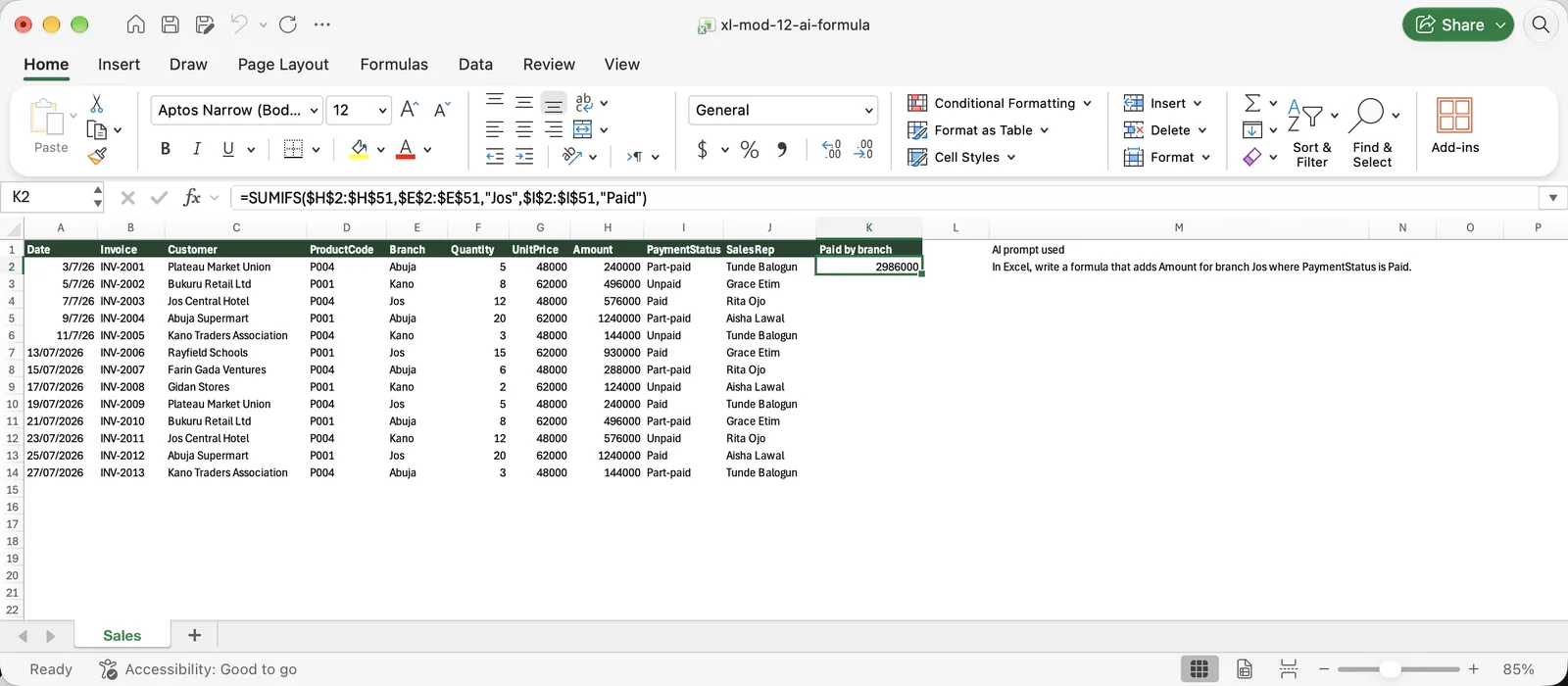
Try it yourself — step by step
- Write the prompt: In Excel, write a formula that adds Amount for branch Jos where PaymentStatus is Paid.
- Ask for the ranges to be named so you can swap them for your own.
- Paste the answer into K2 and check the result against a manual filter.
- Keep the prompt beside the formula so a reviewer can see how it was built.
Ask for a formula with the exact layout
AI writes better formulas when you describe the sheet. Instead of 'write a formula for sales', say: 'In Sheet1, column A is Date, B is Branch, C is Product, D is Quantity, E is Unit Price, F is Amount. Write a formula in G2 that flags a row as High when Amount is above 500000, otherwise Normal. Use exact column letters.' The AI can then return =IF(F2>500000,"High","Normal"). Always compare the suggested columns with your real sheet before pasting.
Understand complex formulas
Paste a formula you inherited and ask: 'Explain this formula one argument at a time, using the column letters from my sheet. Tell me what it returns and what would break it.' This is one of the safest uses of AI because you can check the explanation against the formula. Ask for a plain-English version and a worked example with sample values. If the explanation contradicts what the cell actually does, trust the cell and investigate the difference.
Troubleshoot spreadsheet errors
Describe the error and the formula, not the confidential data: 'I get #N/A from =XLOOKUP(A2,Products!A:A,Products!B:B). The code in A2 looks correct. What should I check?' AI can list likely causes: extra spaces, number stored as text, wrong sheet name, missing exact match, hidden characters. Work through the checks one by one. Do not paste an entire confidential workbook into a public tool; use a small fictional sample that reproduces the problem.
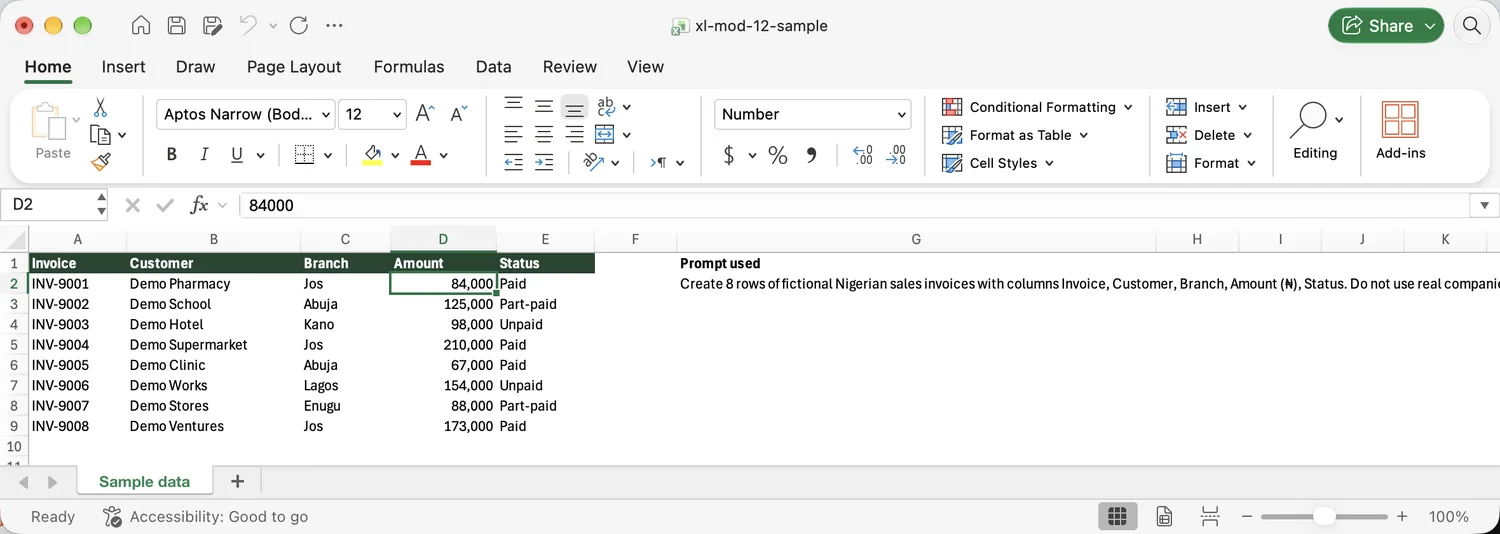
Try it yourself — step by step
- Ask for 8 rows of fictional Nigerian sales invoices.
- Specify the columns: Invoice, Customer, Branch, Amount, Status.
- Add Do not use real companies to the prompt.
- Check every row is obviously fictional before using it in a lesson.
Generate fictional sample datasets
AI can create practice data: 'Generate 30 rows of fictional Nigerian sales records as a CSV with columns Date, Branch, Product, Quantity, Unit Price, Amount. Use Jos, Abuja and Kano branches, three products, dates in 2026 and Naira amounts. Do not use real people or companies.' Check the output for duplicates, impossible dates and arithmetic that does not add up. Save it as a CSV and import it into Excel. Fictional data is safe to share and ideal for practising formulas and PivotTables.
Analyse spreadsheet data with AI
Paste a small, cleared summary table, not the raw confidential register, and ask for patterns: 'Here is a fictional monthly summary. Identify the three largest changes, possible causes phrased as unconfirmed, and two questions I should ask the branch manager.' AI is good at suggesting hypotheses and report structure. It is not reliable for final calculations. Recompute every total in Excel and label causes as 'to be confirmed' until a human verifies them.

Build the prompt from three phrases — Role, Task and Format — and watch the AI answer.
Create reports from verified results
Give AI the final, verified figures and the audience: 'Here are the verified totals for Q3. Draft a 150-word management commentary for a director. Mention the top two variances, phrase causes as to be confirmed, and recommend two actions. Do not invent figures.' Then check that every number in the draft matches your table. AI is strongest at turning correct numbers into readable prose; it cannot make wrong numbers right.
Improve spreadsheet workflows
Ask AI to review a described process: 'Our monthly expense report takes two days because three officers email separate sheets. Suggest a simpler workflow using free Excel web and OneDrive, with steps and controls.' AI can propose a shared workbook, a standard template, validation lists and a review checklist. You decide what fits your office and your data-protection rules. Document the new workflow and test it for one month before making it mandatory.
Step-by-step: use AI safely on a formula problem
1) Make a copy of the workbook. 2) Write down the exact column letters, sheet names and the result you want. 3) If the data is confidential, recreate a small fictional sample with the same layout. 4) Ask AI for the formula and a one-line explanation of each argument. 5) Paste it into one cell on the copy. 6) Test it on three known rows. 7) Compare the result with a manual calculation. 8) If it works, copy it down and check for errors. 9) Record the prompt, the formula and the test result in a note. 10) Delete any sensitive chat history.
Common mistakes to avoid
The main mistake is pasting a real workbook with staff or customer data into a public AI tool. Another is accepting a formula without checking the column letters against the actual sheet. Others include trusting AI arithmetic, using an AI-generated dataset without checking the totals, and asking a vague question that produces a generic formula. Always test on a copy and keep a note of what changed.
Practice exercise
Create a fictional five-column sales sheet with ten rows. Ask ChatGPT or Gemini for a formula that calculates line totals and another that flags amounts above ₦500,000. Test both on three rows, compare with manual arithmetic and write a short note recording the prompt, the formula and the test result. Then ask AI to generate a 20-row fictional dataset and check it for duplicates and impossible dates.
Lesson summary
AI is a useful Excel assistant when you give it the exact layout, a clear task and fictional or cleared data. Use it to generate and explain formulas, suggest error checks, create practice datasets and draft reports from verified figures. Test every formula on a copy, verify every total in Excel and never paste confidential workbooks into a public tool.
Open Microsoft Copilot (free tier) and paste this prompt there. Explains Excel formulas and data questions alongside the workbook you are building.
You are an Excel and AI coach for Nigerian office workers. Write a prompt that asks AI for a SUMIFS formula and an explanation, using fictional sales data the prompt first, then the expected formula and a testing checklist.
Why this tool: Explains Excel formulas and data questions alongside the workbook you are building.
Hit a free limit? Switch to ChatGPT or Gemini and continue — the prompt works in any assistant.
Answer all three questions and check your answers to unlock the next lesson. Pass mark: 2 of 3.
The safest data to paste into a public AI tool for formula practice is…
After AI suggests a formula, you should…
AI is most reliable for…