
Lookups and dynamic functions
Listen to this lesson
Nigerian voice narration
Fictional training case. Two new needs arrive: the complaints desk wants each complaint to automatically show the rider and location for that delivery ID, and the MD wants a live list of today's undelivered parcels without anyone filtering by hand. Lookups (VLOOKUP, XLOOKUP) and dynamic functions (FILTER, SORT, UNIQUE) automate both.

VLOOKUP — the classic
=VLOOKUP(A2,Register!A:J,4,FALSE) finds the DeliveryID in column A of the register and returns the 4th column — the Rider. FALSE means exact match; always use FALSE for IDs. VLOOKUP only looks rightwards — the ID must be left of what you want.
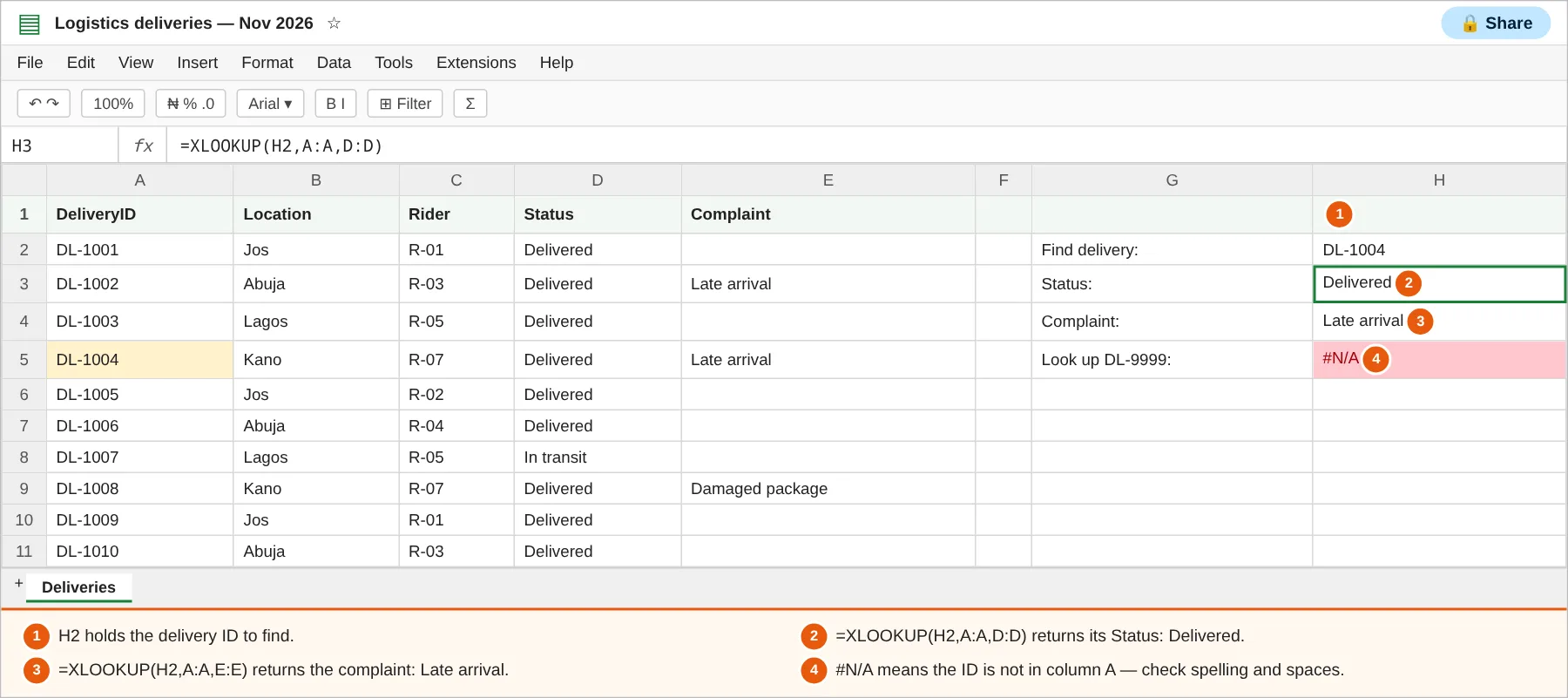
Try it yourself — step by step
- Type the delivery ID to find (e.g. DL-1004) in H2.
- In H3 type =XLOOKUP(H2,A:A,D:D) to return its Status.
- In H4 type =XLOOKUP(H2,A:A,E:E) to return the complaint.
- If you see #N/A, check the ID for typos and extra spaces.
XLOOKUP — the better way
=XLOOKUP(A2,Register!A:A,Register!D:D,"Not found") looks up the ID in column A and returns column D — any direction, with a built-in not-found message. If your Sheets version has XLOOKUP, prefer it; it is clearer and safer.
FILTER — live views without filtering
=FILTER(Register!A:J,Register!H:H<>"Delivered") returns every undelivered row, updating live as the register changes. Put it on a dashboard tab and the MD's 'undelivered now' list maintains itself.

Build the prompt from three phrases — Role, Task and Format — and watch the AI answer.
UNIQUE and SORT
=UNIQUE(C:C) lists every location once — the basis of a location summary. =SORT(range,column,false) sorts live. Combined: =SORT(UNIQUE(FILTER(...))) builds self-updating summary lists that used to take an hour of manual work.
Common mistakes to avoid
The most common lookup mistake is forgetting FALSE in VLOOKUP, so an approximate match returns the wrong rider with no error message. Another is looking up a value that sits to the right of the column you want returned — VLOOKUP only looks rightwards; use XLOOKUP instead. And people often build a FILTER view, then edit its output cells directly, which breaks the formula; a FILTER result is read-only — edit the source register.
Your practice
Build two things: a small complaints tab where typing a DeliveryID pulls the rider and location with XLOOKUP, and a dashboard tab with a FILTER formula listing undelivered parcels. Change a status in the register and watch the dashboard update itself. Finally, test the 'Not found' message by typing an ID that does not exist — graceful errors are part of a professional tool.
You are a Google Sheets expert. Write an XLOOKUP that takes a DeliveryID typed in cell A2 and returns the rider name from the Register tab (IDs in column A, riders in column D), showing 'Not found' for unknown IDs. Explain each argument.
Answer all three questions and check your answers to unlock the next lesson. Pass mark: 2 of 3.
XLOOKUP improves on VLOOKUP because it…
=FILTER(Register!A:J,Register!H:H<>"Delivered") produces…
UNIQUE(C:C) on the Location column gives…