
Sharing, permissions and collaboration
Listen to this lesson
Nigerian voice narration
Fictional training case. The Jos hub edits the register daily, Abuja only needs to see it, and the finance officer must see charges but not edit anything. Last month someone emailed an Excel copy around and three conflicting versions appeared. This lesson teaches Sheets' sharing model — the feature that makes one true register possible.

The three permission levels
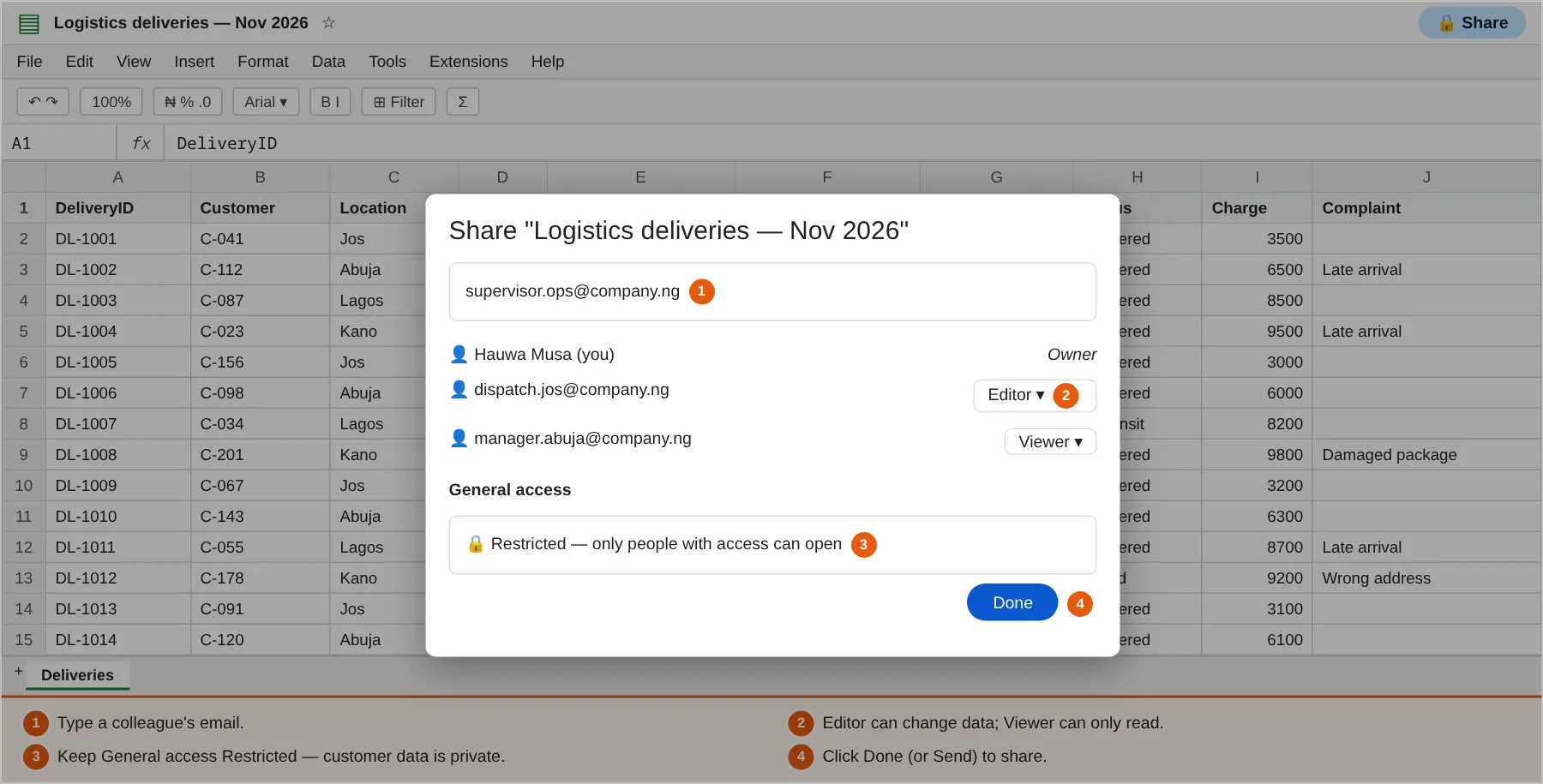
Viewer can only read; Commenter can read and comment; Editor can change everything. Share with the least power each person needs: hubs get Editor, management gets Viewer, auditors get Commenter. Click Share and set each person's level.
Try it yourself — step by step
- Click the green Share button at the top right.
- Type the colleague's email address.
- Choose Viewer, Commenter or Editor from the drop-down.
- Keep General access on Restricted, then click Send.
Link sharing dangers
'Anyone with the link can edit' is convenient and dangerous — the link can be forwarded beyond your control. Prefer named accounts. For sensitive registers, restrict to specific people and review the list monthly.
Protecting ranges
Data → Protect sheets and ranges lets editors work while locking critical areas: finance's Charge column, or the header row. Protected ranges prevent the most common shared-register accident — someone overwriting a formula column.

Build the prompt from three phrases — Role, Task and Format — and watch the AI answer.
Multiple sheets in one workbook
Keep raw data on one tab, analysis on another, and a summary dashboard on a third. Right-click a tab to rename, colour-code or duplicate. One workbook, clear roles per tab — that is a system, not just a spreadsheet.
Common mistakes to avoid
The dangerous mistake is 'anyone with the link can edit' — the link gets forwarded and strangers can change your register. Use named accounts with the least permission each role needs. Another common accident is an editor overwriting a formula column; protect those ranges before sharing. And do not forget to review the sharing list when staff change roles — access should follow the job, not the friendship.
Your practice
Share your deliveries workbook with a colleague or a second account of your own: one Editor, one Viewer. Protect the Charge column. Add a second tab named 'Analysis'. Watch a change appear live in the other view — that is the collaboration you are harnessing.
You are an IT adviser for a small logistics company. Recommend the sharing settings for a delivery register used by hub staff (daily entry), finance (charges only) and the MD (oversight), with a one-line reason for each.
Answer all three questions and check your answers to unlock the next lesson. Pass mark: 2 of 3.
A Commenter can…
Protect sheets and ranges is used to…
The risk of 'anyone with the link can edit' is…