
ClickUp: tasks, priorities, subtasks, views and tracking progress
Listen to this lesson
Nigerian voice narration
Fictional training case. Your ClickUp workspace is ready. Now you need to load the Jos law firm website project: 24 tasks, four team members, a client review every Friday and a launch deadline of 28 February. The MD wants to see progress at a glance without asking anyone. This lesson takes you step by step through creating and managing tasks, and using views and dashboards to track the project.

Introduction and objectives
Tasks are the heart of ClickUp. In this lesson you will create and assign tasks, set due dates and priorities, add subtasks and checklists, switch between List, Board and Calendar views, collaborate with comments, and track progress. By the end you should be able to run a complete project in ClickUp.
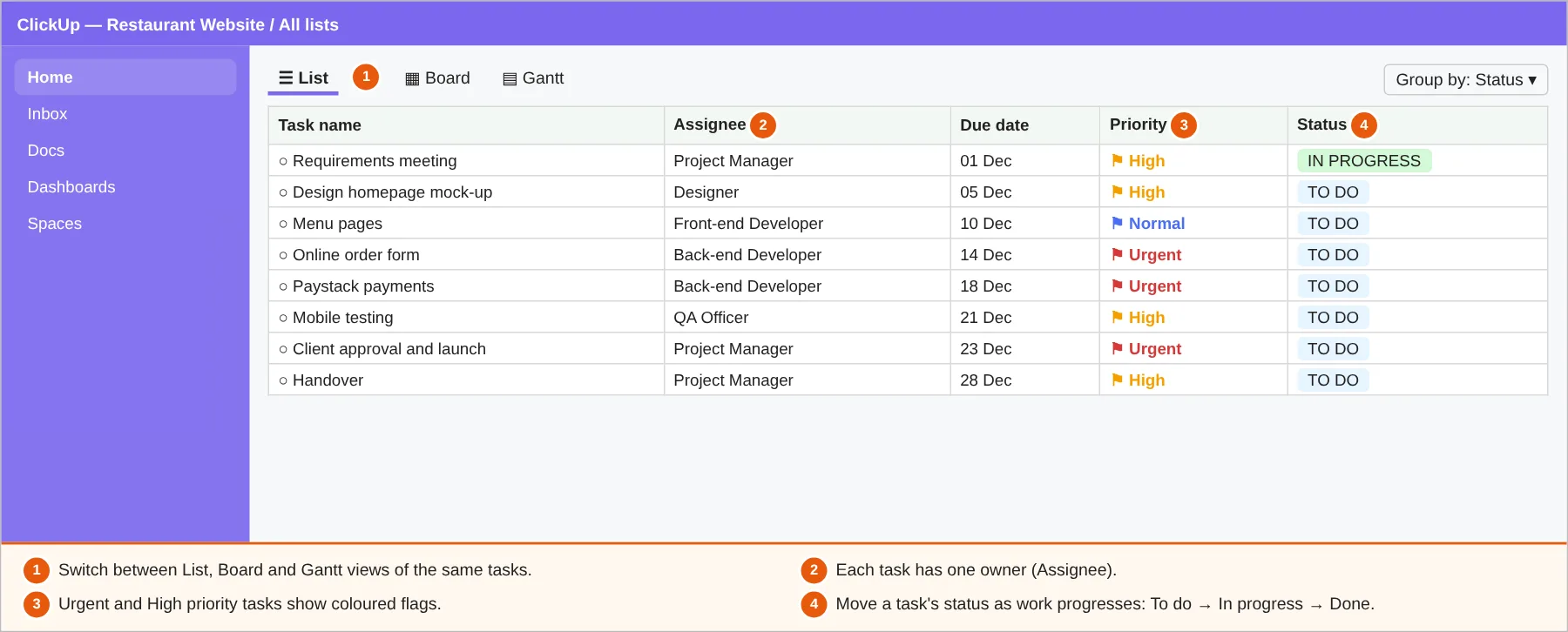
Try it yourself — step by step
- Open the Restaurant Website folder and choose List view.
- Click a task and set its Assignee and Due date.
- Click the flag to set Priority (Urgent, High, Normal).
- Change the Status to In Progress when work starts.
- Switch to Board or Gantt view to see the same tasks another way.
Step 1: create and assign tasks
Open the 'Design' list and click '+ Add Task'. Type 'Design homepage mock-up' and press Enter. Click the task to open it, then click the person icon to assign it to the designer, the calendar icon to set a due date (e.g. 10 February), and the flag icon to set priority: Urgent, High, Normal or Low. Add a description with requirements and attach the client's logo.
Step 2: subtasks and checklists
Inside a task, click '+ Add subtask' to create smaller pieces with their own assignees and dates, such as 'Hero section' and 'Footer'. Use checklists for simple steps that do not need separate owners, for example 'Check mobile view', 'Use brand colours', 'Send to client'. Checklist items are ticked off and show progress on the task.
Step 3: List, Board and Calendar views
At the top of a list, click '+ View'. List view shows tasks in rows with assignees and dates, good for planning. Board view shows Kanban columns by status; drag cards from To Do to In Progress to Done. Calendar view places tasks on their due dates, revealing busy weeks. Add a Gantt view to see the timeline and dependencies (limited uses on the free plan).

Build the prompt from three phrases — Role, Task and Format — and watch the AI answer.
Step 4: collaborate and track progress
Use comments with @mentions instead of WhatsApp: '@Developer the client approved the homepage.' Assign comments as action items. Track progress by filtering 'Overdue' tasks, grouping by assignee to check workload, and using the folder's progress bar. Create a simple Dashboard with a status pie chart and an overdue task list for the MD.
Common mistakes to avoid
Common mistakes include tasks with no assignee or due date, marking everything 'Urgent', discussing tasks in WhatsApp so decisions are lost, and never updating statuses. Another is overusing subtasks for trivial steps; use checklists instead. Agree with the team that ClickUp is the single source of truth.
Practice exercise
In your ClickUp folder, create at least ten tasks for a project, each with an assignee, due date and priority. Add subtasks to two tasks and a checklist to one. Switch to Board view and move three tasks across statuses, then view the Calendar and note the busiest week.
Lesson summary
In ClickUp, create tasks with clear assignees, due dates and priorities. Break work down with subtasks and checklists. Use List, Board, Calendar and Gantt views for different purposes, collaborate in comments, and track progress with filters and dashboards.
You are a ClickUp power user. List the steps to create a task with an assignee, due date, priority, two subtasks and a checklist in ClickUp as 7 numbered steps naming the exact buttons.
Answer all three questions and check your answers to unlock the next lesson. Pass mark: 2 of 3.
For simple steps like 'Check mobile view' that need no separate owner, use…
Marking every task 'Urgent' causes…
The best way to see which week has too many deadlines is…