
HR Administration with Google Forms and Sheets
Listen to this lesson
Nigerian voice narration
Fictional training case. Fictional case. Kowa Microfinance still collects job applications on paper and records attendance in a hardcover book. Two applications were lost last month, the leave tracker is a page in a notebook, and the MD wants a monthly HR report. You have no budget for new software, but you do have a Google account.

Introduction and learning objectives
This lesson shows how to use Google Forms and Google Sheets as a free HR administration system: creating a job application form, collecting employee information, linking responses to a Sheet, building a staff database, attendance register, leave tracker and recruitment tracker, preparing simple reports and protecting sensitive data. By the end you should be able to replace several paper processes with one controlled workbook.
Why Google Forms and Sheets for HR
Google Forms collects information through a link and stores each response in a Sheet. Google Sheets is a free spreadsheet that several authorised people can view or edit. Together they cover many HR tasks: applications, staff data, attendance, leave and recruitment tracking. They work in a browser and on a phone, save automatically and need no installation. They are not a full HR system, but they are a strong, low-cost starting point for a small organisation.
Creating a job application form
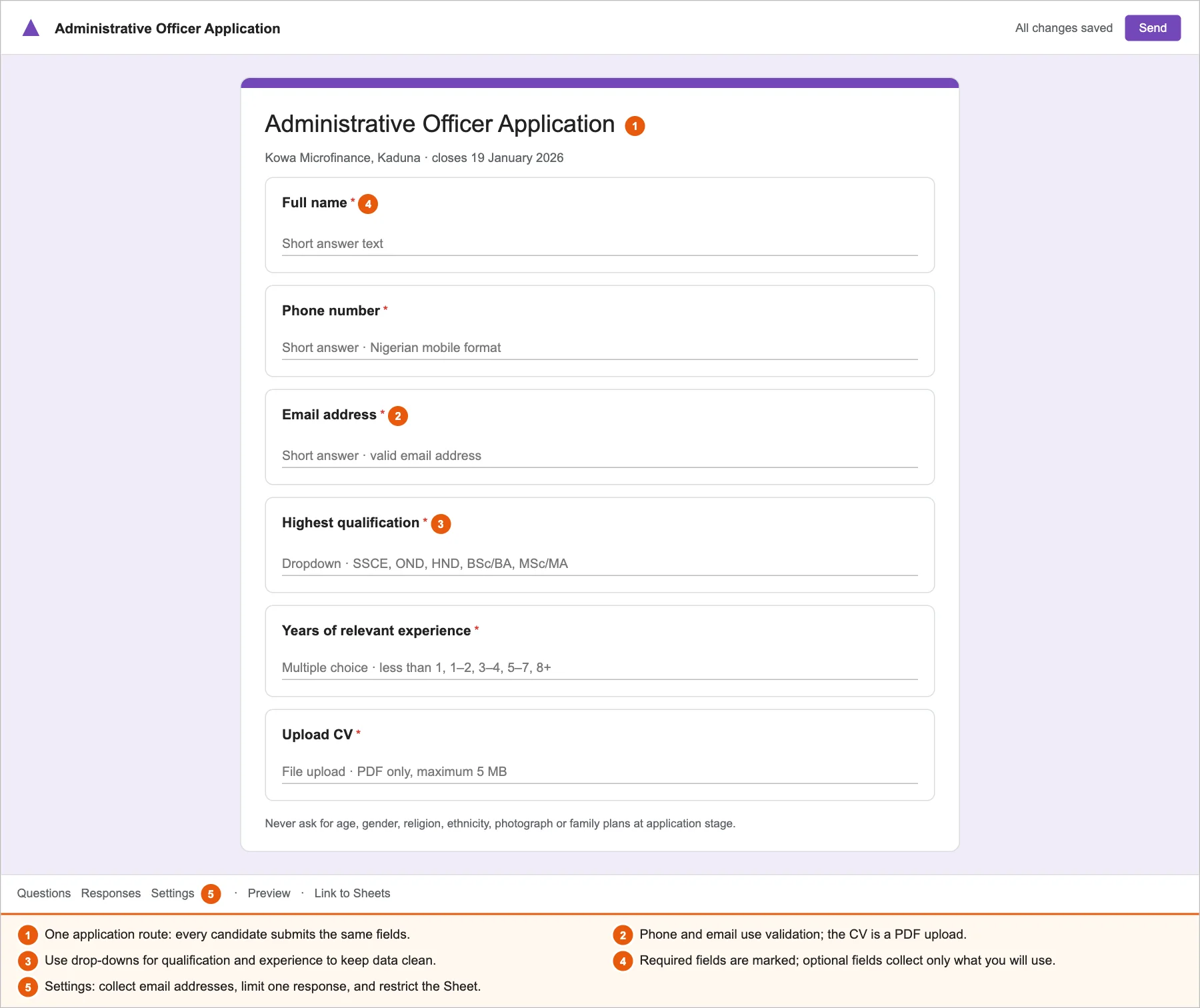
Open forms.new with your Google account. Add a clear title and short description with the role, closing date and what applicants must submit. Collect name, phone, email, location, highest qualification, relevant experience, current role and a short motivation. Use required fields only where necessary. If you need a CV upload, check the current file-upload rules and storage limits; otherwise ask applicants to paste a link or bring copies. Test the form on a phone before sharing it.
Try it yourself — step by step
- Open Google Forms and create one application form.
- Add full name, phone, email, qualification, experience and CV upload.
- Use drop-downs for qualification and experience.
- Mark required fields and restrict the CV to PDF, 5 MB.
- Collect emails, limit one response and restrict the linked Sheet.
Collecting employee information securely
An employee information form should collect only the fields HR genuinely needs and can protect: staff number, name, contact details, emergency contact, bank and tax details where payroll requires them, qualifications and start date. Explain why each sensitive field is collected and who will see it. Do not ask for religion, ethnicity or health information without a specific lawful reason. Limit editing rights to HR and never share the response Sheet with a public link.
Linking Forms to Sheets and cleaning responses
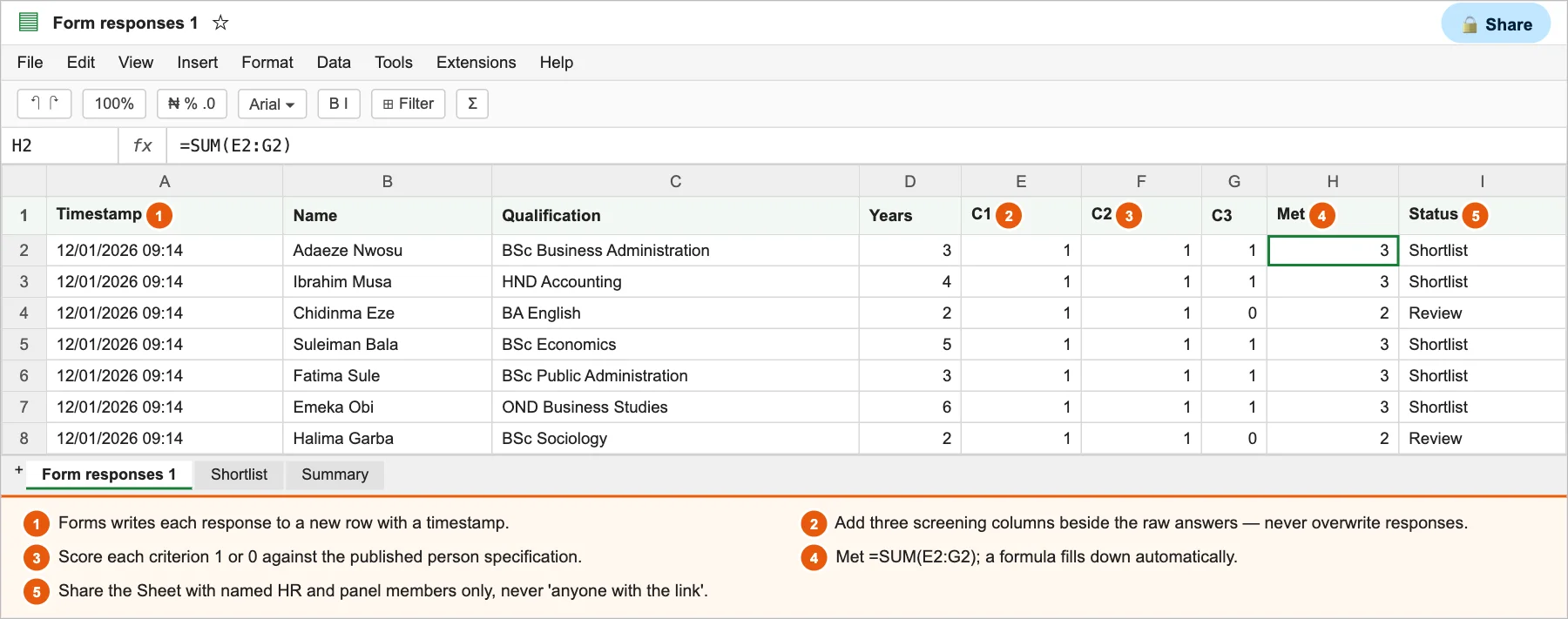
In the Form, open Responses, click the Sheets icon and create a spreadsheet. The response Sheet receives a timestamp and one row per submission. Keep the raw responses separate from your working tracker. Add helper columns, data validation and a status field such as New, Screened, Shortlisted or Rejected. Check for duplicate submissions and incomplete answers. Never edit the raw timestamp column; use a copy for analysis so you can always return to the source.
Try it yourself — step by step
- Link the form to a Sheet; each response becomes one timestamped row.
- Add C1, C2 and C3 beside the raw answers; never overwrite responses.
- Score each criterion 1 or 0.
- In Met type =SUM(E2:G2) and let it fill down.
- Share only with named HR and panel members.
Attendance registers and leave trackers in Sheets
Create one sheet per month with a row per employee and columns for each working day. Use codes such as P for present, L for late, A for absent and LV for leave, then count with COUNTIF. Add a leave sheet with employee, type, start, end, days, status and approver. Use data validation for the status list and conditional formatting to flag negative balances. Protect formula columns so a casual edit does not break the totals.
Managing recruitment records
A recruitment tracker lists each applicant with an ID, date received, role, source, screening score, shortlist status and interview notes. Keep it separate from the application response sheet. Use a simple scoring formula or manual scores with a clear rubric. Add a dashboard section with COUNTIFS for applications received, shortlisted and interviewed. Retain applicant data only as long as your policy allows and delete it securely afterwards.

Build the prompt from three phrases — Role, Task and Format — and watch the AI answer.
Creating HR reports from Sheets
Use COUNTIF, COUNTIFS, SUMIF and PivotTables to summarise headcount by department, leave days by type, attendance by month and applications by status. Build a small dashboard with a few clear numbers and one chart. Label every figure with its period and source. Check a sample of rows against the daily entries before sending the report. A short, accurate report is more useful than a large, unverified one.
Protecting sensitive employee information
Use the sharing settings deliberately: named people, not 'anyone with the link'. Make the main database editable only by HR and share a view-only summary with managers. Protect ranges and sheets, use two-step verification on the account, and review access when someone leaves. Do not store payroll or medical data in the same public form response sheet. Under the Nigeria Data Protection Act 2023, personal data must be collected lawfully, secured and kept only as long as necessary.
Step-by-step: application form to shortlist
1) Create the form with role-specific questions and a closing date. 2) Link it to a new response Sheet. 3) Add a tracker sheet with applicant ID, score and status. 4) Copy each response into the tracker or use a formula to bring key fields across. 5) Add a screening rubric with three essential criteria. 6) Score every applicant consistently. 7) Build a summary with COUNTIF for received, shortlisted and rejected. 8) Restrict sharing and delete the data when the retention period ends.
Common mistakes to avoid
Common mistakes are sharing a response Sheet as 'anyone with the link can edit', collecting too much personal data, editing the raw response rows, using formulas that break when a row is inserted, and keeping rejected applicants' data forever. Another mistake is trusting a summary without checking the source rows. Separate raw data, working data and the report, and review access regularly.
Practice exercise
Using the downloadable application form fields list, build a fictional Google Form for the Kowa Microfinance administrative officer role. Link it to a Sheet, add a tracker with three screening criteria, and create three COUNTIF formulas for the summary. Write five rules for who may access the Sheet and how long the data is kept.
Lesson summary
Google Forms and Sheets provide free, practical HR administration. Collect only necessary data, link responses to a controlled Sheet, separate raw and working data, use validation and formulas, build simple reports and restrict access. Check samples before sharing reports and delete data when no longer needed.
Open Google Gemini (free tier) and paste this prompt there. Google's assistant fits Google Forms and Sheets steps and formula questions.
You are a Google Workspace trainer for a Nigerian HR office. Explain how to turn a Google Form application into a clean shortlisting tracker as numbered steps with a note on access control.
Why this tool: Google's assistant fits Google Forms and Sheets steps and formula questions.
Hit a free limit? Switch to ChatGPT or Gemini and continue — the prompt works in any assistant.
Answer all three questions and check your answers to unlock the next lesson. Pass mark: 2 of 3.
A Google Form response Sheet should be treated as…
COUNTIF is used to…
Which data should be collected only with a specific lawful reason?