
Cleaning dirty data in Excel
Listen to this lesson
Nigerian voice narration
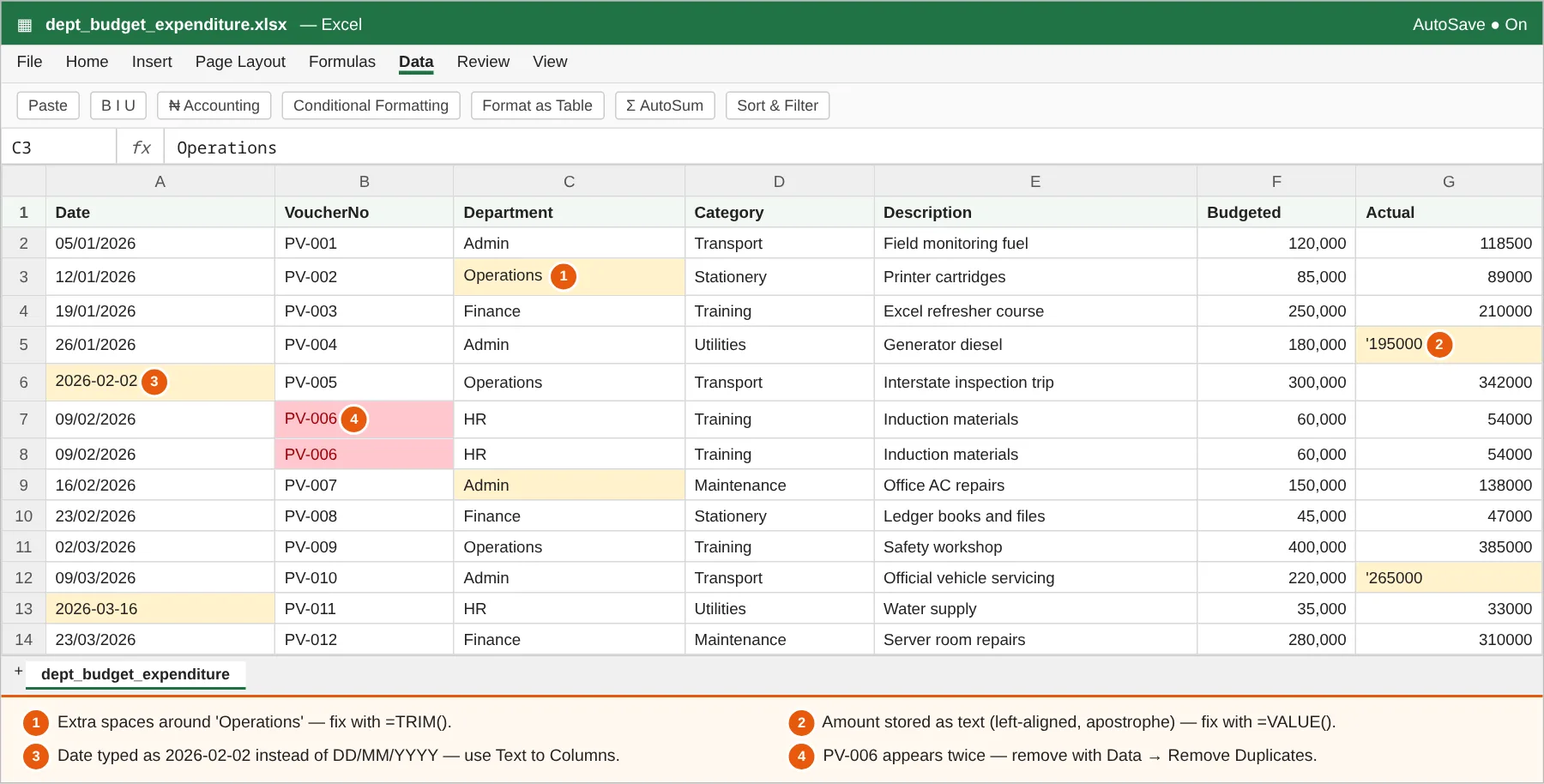
Fictional training case. Three units emailed their expenditure returns and you have combined them into one sheet. It is a mess: 'Admin', 'ADMIN' and 'admin ' appear as three departments, dates are in three formats, some amounts are text, and 14 rows are exact duplicates. Before any analysis, the data must be cleaned. This lesson is the cleaning toolkit — the half of analytics nobody advertises.

Find the duplicates
Select the data → Data → Remove Duplicates, ticking the columns that make a row unique (VoucherNo alone is usually enough). Excel reports how many it removed. Keep a copy of the uncleaned sheet on another tab first — cleaning should be reversible.
Try it yourself — step by step
- Select the data and press Ctrl+T to make it a table.
- Use =TRIM() in a helper column to remove extra spaces.
- Convert text amounts with =VALUE() and set the Number format.
- Fix dates with Data → Text to Columns → Date (DMY).
- Remove repeats with Data → Remove Duplicates.
Fix text with TRIM, CLEAN and PROPER
'admin ' has a trailing space that makes it a different value. =TRIM(A2) removes extra spaces, =CLEAN(A2) removes hidden characters, =PROPER(A2) fixes capitalisation. Apply in a helper column, then Copy → Paste Values over the original.
Standardise dates and numbers
Text dates like '3rd Oct' will not sort. Use Find & Replace for systematic fixes, and Text to Columns (Data tab) to split combined fields like 'Admin-Transport' into two columns. For stubborn text-numbers, multiply by 1 or use the error-checking menu to convert.

Build the prompt from three phrases — Role, Task and Format — and watch the AI answer.
Prevent dirt with data validation
Data → Data Validation → List lets you give a column a dropdown (Admin, Operations, Finance…). Every future entry is spelled identically. One dropdown today saves an hour of cleaning every month — set it up before circulating any template.
Common mistakes to avoid
The biggest mistake is cleaning the only copy of the data — always keep the raw version on a separate tab so cleaning is reversible. Another is removing duplicates on all columns when the voucher number alone defines uniqueness, which misses real duplicates. And many people clean the same file every month instead of preventing the dirt: a data-validation dropdown on the template stops inconsistent spellings at the source.
Your practice
Deliberately dirty a copy of the sample file: add a duplicate row, a trailing space and a text amount. Then clean it with Remove Duplicates, TRIM and conversion. Knowing how dirt happens makes you faster at removing it.
You are a data cleaning specialist. I have a column where 'Admin', 'ADMIN' and 'admin ' appear as separate values. Give me the exact steps to standardise them in Excel, including how to replace the originals with the cleaned values.
Answer all three questions and check your answers to unlock the next lesson. Pass mark: 2 of 3.
'admin ' (with a trailing space) and 'admin' are…
Before removing duplicates you should…
Text to Columns is used to…