
Conditional functions: IF, SUMIF and COUNTIF
Listen to this lesson
Nigerian voice narration
Fictional training case. The director asks three questions: Which categories exceeded their budget? How much did we spend on transport alone? How many vouchers went to each department? These are conditional questions — add or count only where a condition holds. IF, SUMIF, SUMIFS, COUNTIF and COUNTIFS answer them, and IFERROR keeps the sheet tidy when data is missing.

IF — the decision function
=IF(G2>F2,"Over","Within") compares Actual to Budgeted and labels each row. Nest IFs for more bands: =IF(G2>F2,"Over",IF(G2=F2,"Exact","Under")). IF turns raw numbers into flags a busy reader understands.
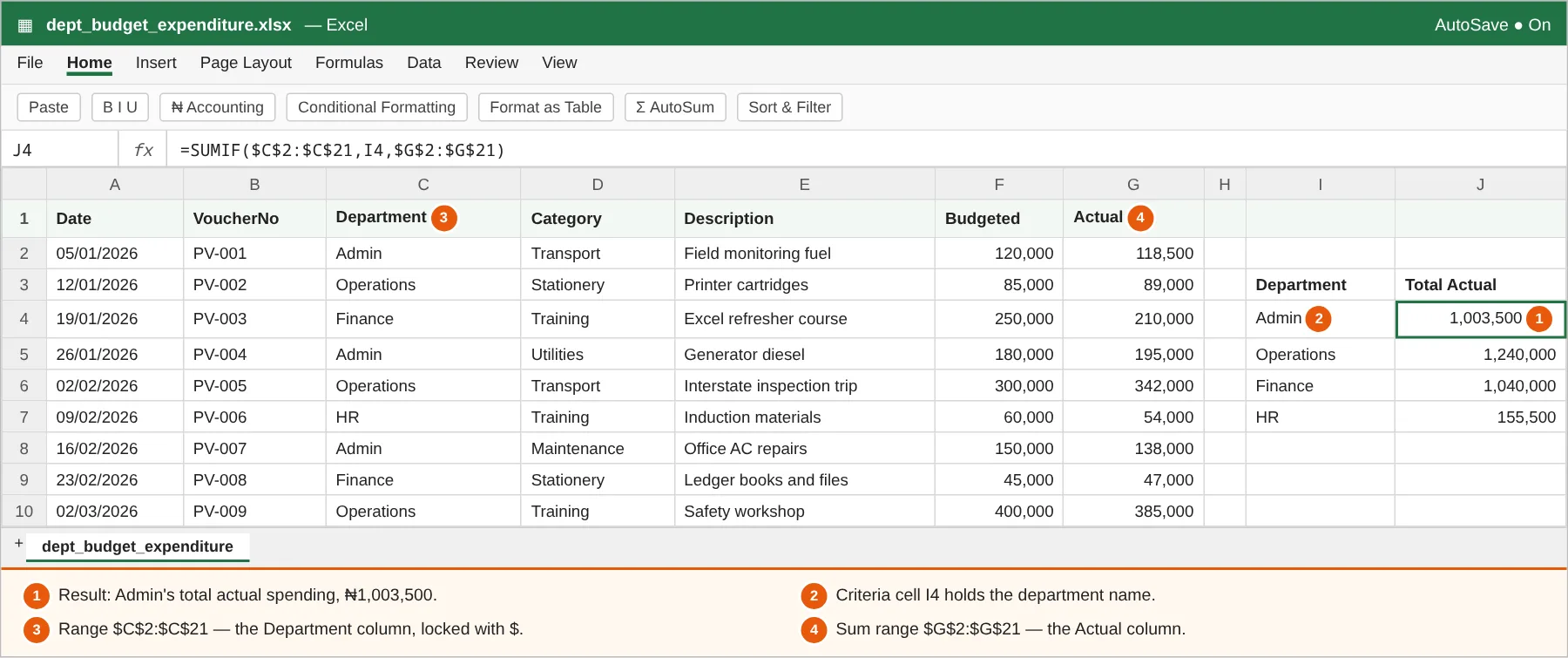
Try it yourself — step by step
- In I3 type Department, list the four departments below it, then click J4.
- Type =SUMIF( and select C2:C21 (Department) as the range.
- Type a comma and click I4 (Admin) as the criteria.
- Type a comma, select G2:G21 (Actual), close ) and press Enter.
- Press F4 on each range to lock it with $ before copying down.
SUMIF and SUMIFS
=SUMIF(D:D,"Transport",G:G) adds Actual where Category is Transport. SUMIFS adds with several conditions: =SUMIFS(G:G,D:D,"Transport",C:C,"Admin") — transport spending in the Admin department only. The sum range comes first in SUMIFS; a common beginner trap.
COUNTIF and COUNTIFS
=COUNTIF(C:C,"Admin") counts Admin vouchers; COUNTIFS adds conditions. Use these to build a small department-by-category matrix: departments down the side, categories across the top, SUMIFS in each cell.

Build the prompt from three phrases — Role, Task and Format — and watch the AI answer.
IFERROR — the tidy wrapper
=IFERROR(your formula,"—") shows a dash instead of #DIV/0! or #N/A when data is missing. Reports with error codes look careless; wrap any division or lookup in IFERROR before the file leaves your desk.
Common mistakes to avoid
The most frequent mistake is mixing up SUMIF and SUMIFS argument order — in SUMIFS the sum range comes first, in SUMIF it comes last — and the formula silently returns zero. Another is conditions that do not match the data: 'transport' versus 'Transport' with different spelling or trailing spaces. Always verify a new conditional formula once by filtering and comparing with the status bar total before trusting it in a report.
Your practice
On the sample file: add an IF column flagging 'Over'/'Within' budget, a SUMIF for one category, and a COUNTIF for one department. Check the SUMIF answer by filtering and reading the status bar total — always verify a new formula once. Then build one SUMIFS with two conditions and verify it the same way; two-condition formulas are where most silent errors hide.
You are an Excel expert. Write a SUMIFS formula that adds the Actual column where Category is 'Training' and Department is 'Operations', then explain each argument in simple words.
Answer all three questions and check your answers to unlock the next lesson. Pass mark: 2 of 3.
To label rows where spending exceeded budget, use…
#DIV/0! appearing in a report should be handled with…
COUNTIF(C:C,"Admin") answers which management question?