
The Excel interface and your first workbook
Listen to this lesson
Nigerian voice narration
Fictional training case. You are the Administrative/Data Officer of a government department with an annual budget covering transport, stationery, maintenance, training and utilities. The accounts unit hands you a paper voucher register and asks you to 'put it in Excel'. This lesson gets you comfortable in the Excel interface and sets up the workbook that the whole scenario will build on.

Finding your way around
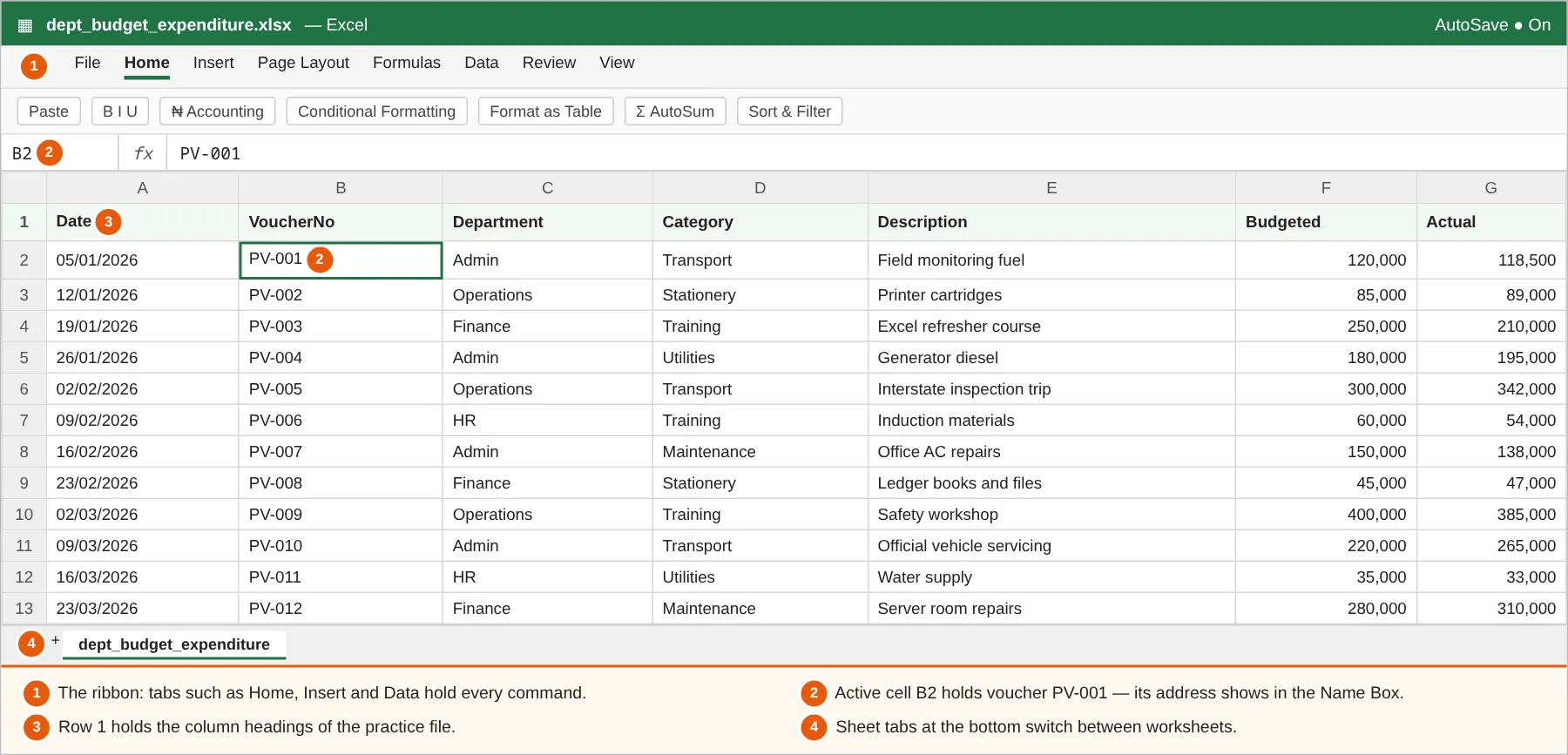
The Ribbon holds commands in tabs (Home, Insert, Data). The Name Box shows the active cell (like B2); the Formula Bar shows its true contents. The sheet tabs at the bottom switch between worksheets. Learn these four landmarks and Excel stops being intimidating.
Try it yourself — step by step
- Open dept_budget_expenditure.csv in Excel.
- Click a cell, e.g. B2 — its address shows in the Name Box.
- Type a value and press Enter; read it back in the formula bar.
- Use the sheet tabs at the bottom to add or switch sheets.
Create, save, name properly
Create a new workbook and save it immediately with a professional name: Dept_Expenditure_2026.xlsx — no spaces, no 'final_final2'. Save versions by date when the file changes hands. Excel's AutoRecover helps, but a saved, well-named file is the real insurance.
Set up the register sheet
Rename Sheet1 to 'Register'. In row 1 type the headers: Date, VoucherNo, Department, Category, Description, Budgeted, Actual. One header row, no merged cells, no title banner above the data — banners belong on the report, not the dataset.

Build the prompt from three phrases — Role, Task and Format — and watch the AI answer.
Enter the first records
Type five fictional vouchers into rows 2–6. Press Tab to move across, Enter to move down. Keep dates in one format (DD/MM/YYYY) and amounts as plain numbers — never type ₦ or commas into number cells; formatting adds the symbol later.
Common mistakes to avoid
Beginners routinely type amounts with the Naira symbol and commas, which turns numbers into text and silently breaks every SUM. Another mistake is saving with names like 'final_final2.xlsx', which guarantees confusion when the file moves between officers. A third is starting the data halfway down the sheet under a merged title banner; keep row 1 for headers and data from row 2, and put titles on the report, not the dataset.
Your practice
Download the sample expenditure CSV, open it in Excel, and Save As an .xlsx workbook named correctly. Compare its structure with the register you just designed — same principles, more rows.
You are a patient Excel trainer. Give me a 6-step checklist for setting up a clean departmental expenditure register in Excel, from creating the workbook to entering the first five records.
Answer all three questions and check your answers to unlock the next lesson. Pass mark: 2 of 3.
The Formula Bar shows…
A professional file name is…
The dataset should start…