
Excel for accounting: cashbook, expense register and core formulas
Listen to this lesson
Nigerian voice narration
Fictional training case. A small Kaduna school runs its accounts in Excel. The bursar's sheets have merged cells, totals typed in by hand and formulas that break when rows are added. The proprietor asks you to rebuild the cashbook and expense register so they total and summarise themselves. This lesson teaches the layout and formulas accountants use most.

Introduction and objectives
Excel remains the most widely used accounting tool in Nigerian offices. In this lesson you build a cashbook and expense register as Excel Tables and use SUM, IF, SUMIF, SUMIFS and COUNTIF. By the end you should be able to produce automatic totals, running balances and category summaries.
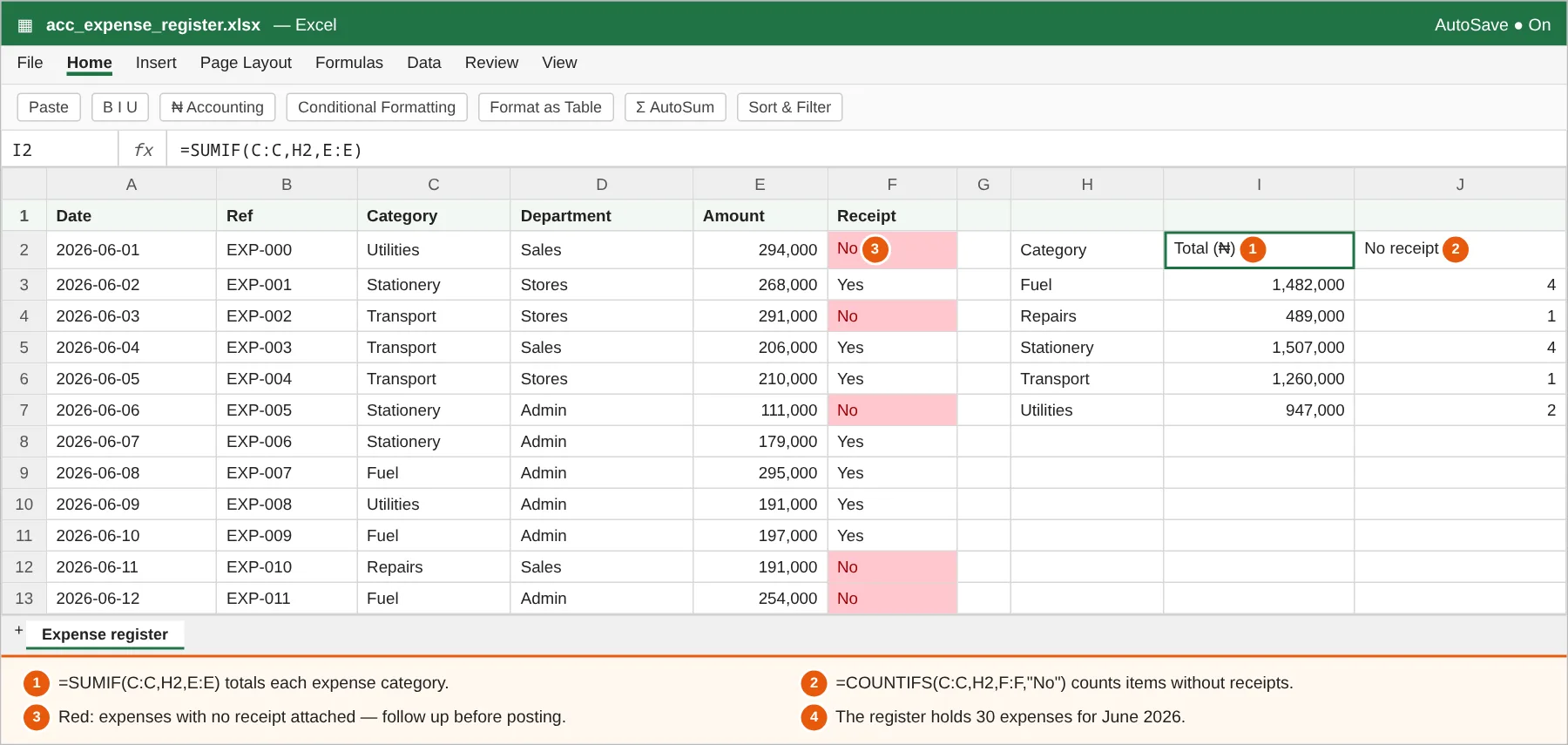
Try it yourself — step by step
- List each expense category once in column H.
- In I2 type =SUMIF(C:C,H2,E:E) for the category total.
- In J2 type =COUNTIFS(C:C,H2,F:F,"No") to count missing receipts.
- Copy both formulas down and follow up every missing receipt.
Building the register as a Table
Use one row per transaction and one header row: Date, Ref, Description, Category, Receipts, Payments, Balance. No merged cells, no blank rows. Select the range and press Ctrl+T to create a Table named tblCash. Tables expand automatically, so formulas and summaries include new rows without editing.
Running balance and IF
In the first Balance cell enter the opening balance; in the next, =G2+E3-F3 and fill down. To flag large payments for approval: =IF(F3>500000,"Needs MD approval",""). To warn about negative cash: =IF(G3<0,"CHECK – negative","OK"). IF lets the sheet apply your financial controls automatically.
SUMIF, SUMIFS and COUNTIF
Total spent on fuel: =SUMIF(tblExp[Category],"Fuel",tblExp[Amount]). Fuel spent in June only: =SUMIFS(tblExp[Amount],tblExp[Category],"Fuel",tblExp[Month],"Jun"). How many payments exceeded ₦100,000: =COUNTIF(tblExp[Amount],">100000"). Build a summary table with one row per category using these formulas.

Build the prompt from three phrases — Role, Task and Format — and watch the AI answer.
Formatting and protection
Format amounts with Number format, thousand separators and two decimals; avoid typing '₦' into numeric cells — use a custom format. Freeze the header row (View → Freeze Panes). Use Data Validation to give Category a drop-down list. Protect formula cells (Review → Protect Sheet) so users enter data but cannot overwrite totals.
Common mistakes to avoid
The classic mistakes are typing totals manually, storing amounts as text such as 'N45,000' so SUM ignores them, inconsistent categories ('Fuel', 'fuel ', 'Diesel') that break SUMIF, and merged headers that prevent sorting and filtering. Clean structure matters more than clever formulas.
Practice exercise
Download the expense register template. Convert it to a Table, add a Category drop-down, write SUMIF totals per category, a COUNTIF of payments above ₦100,000 and an IF approval flag. Add five new rows and confirm every total updates automatically.
Lesson summary
Build accounting registers as clean Excel Tables with one header row. Use running-balance formulas, IF for control flags, and SUMIF, SUMIFS and COUNTIF for summaries. Validate inputs and protect formulas so the workbook stays reliable.
You are an Excel trainer for accounts staff. Write the Excel formulas for a running cash balance, an approval flag above ₦500,000 and the June fuel total as three formulas, each explained in one line.
Answer all three questions and check your answers to unlock the next lesson. Pass mark: 2 of 3.
Why convert a register to an Excel Table with Ctrl+T?
Amounts typed as 'N45,000' are a problem because…
=COUNTIF(tblExp[Amount],">100000") returns…