
Getting started with Zoho Books
Listen to this lesson
Nigerian voice narration
Fictional training case. Bello Office Supplies has outgrown its exercise books and spreadsheets. The MD has chosen Zoho Books because it supports Naira, VAT and online access from the Jos and Abuja branches. You are asked to set up the organisation, customers, suppliers, items and chart of accounts before the new month starts. This lesson walks you through each screen.

Introduction and objectives
Accounting software automates double entry, keeps documents together and produces reports instantly. This lesson introduces accounting software in general and Zoho Books in particular, then shows how to configure an organisation. By the end you should be able to set up a Zoho Books organisation, contacts, items and accounts ready for transactions. Menu names can change as the software is updated; follow the closest current option.
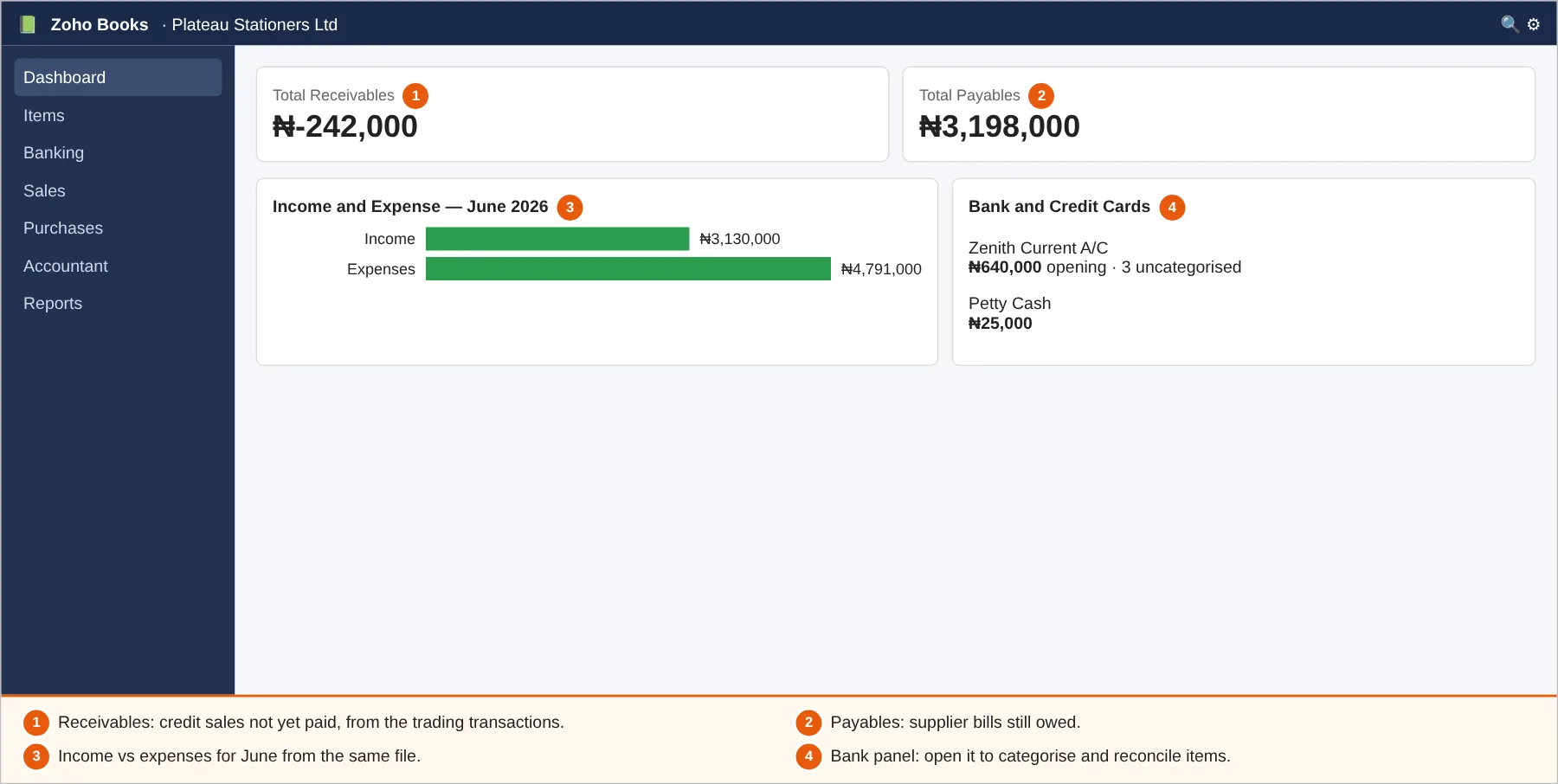
Try it yourself — step by step
- Enter the June trading transactions, then open Dashboard.
- Check Total Receivables and Total Payables first.
- Review the Cash Flow chart for the period.
- Click the bank account panel to see uncategorised items.
Why use accounting software
Software posts both sides of every entry automatically, numbers invoices sequentially, stores attachments, tracks who changed what and produces trial balances and statements in seconds. Popular options in Nigeria include Zoho Books, QuickBooks Online, Sage and Odoo. Zoho Books has a free plan for very small businesses and paid plans as you grow.
Creating the organisation
Sign up at zoho.com/books and choose Nigeria. Under Settings → Organisation Profile enter the business name, address (88 Ahmadu Bello Way, Jos — fictional), industry and logo. Set base currency NGN, fiscal year January–December, and time zone Africa/Lagos. Under Settings → Taxes create VAT at 7.5% and enter your TIN.
Customers, suppliers and items
Go to Sales → Customers → New: enter 'Government Secondary School Jos', contact person, email, phone and payment terms 'Net 30'. Add suppliers under Purchases → Vendors. Under Items → New add 'HP 85A Toner', type Goods, selling price ₦48,000, cost ₦36,000, with sales and purchase accounts selected and inventory tracking switched on.
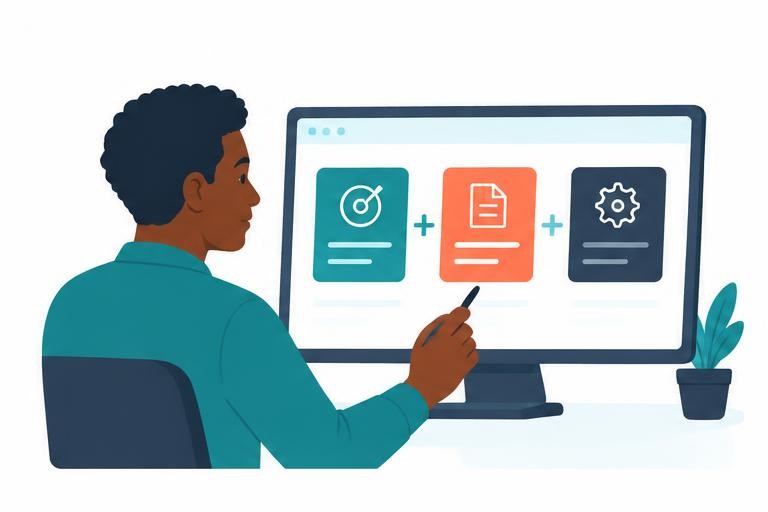
Build the prompt from three phrases — Role, Task and Format — and watch the AI answer.
Chart of accounts and the dashboard
Accountant → Chart of Accounts lists default accounts. Add what you need, such as 'Generator Fuel' under Expenses or 'Microfinance Loan' under Long-Term Liabilities, using clear names and codes. The Dashboard then shows total receivables, payables, cash flow, income and expense charts and top expenses — your daily overview.
Common mistakes to avoid
Common setup mistakes include choosing the wrong currency or fiscal year (hard to change later), creating the same customer twice with slightly different spellings, skipping VAT setup, and dumping all costs into 'Miscellaneous Expense'. A messy chart of accounts produces unusable reports, so plan it before posting.
Practice exercise
Create a free Zoho Books trial organisation for a fictional business. Configure NGN, the fiscal year and 7.5% VAT. Add three customers, two suppliers, four items and three new expense accounts. Screenshot your dashboard and note what each tile shows.
Lesson summary
Accounting software automates double entry and reporting. In Zoho Books, set up the organisation profile, currency, fiscal year and VAT first, then customers, suppliers, items and a clean chart of accounts. The dashboard gives a daily financial overview.
You are a Zoho Books implementation consultant for a Nigerian SME. Give me a setup checklist for a new office-supplies company in Zoho Books as 7 numbered steps with the menu path for each.
Answer all three questions and check your answers to unlock the next lesson. Pass mark: 2 of 3.
A key advantage of accounting software over a manual ledger is…
In Zoho Books, customers are added under…
Putting most costs into 'Miscellaneous Expense' leads to…